
Introduction
The Apple Watch is a fusion of style and technology, becoming an essential tool for many. At the core of its innovative design is the Digital Crown, a control element reminiscent of traditional watch crowns. Understanding its location and functionality allows users to maximize what their Apple Watch can offer. Here, we explore where to find the Digital Crown, its diverse functionalities, and how to keep it in prime condition.
What is the Digital Crown?
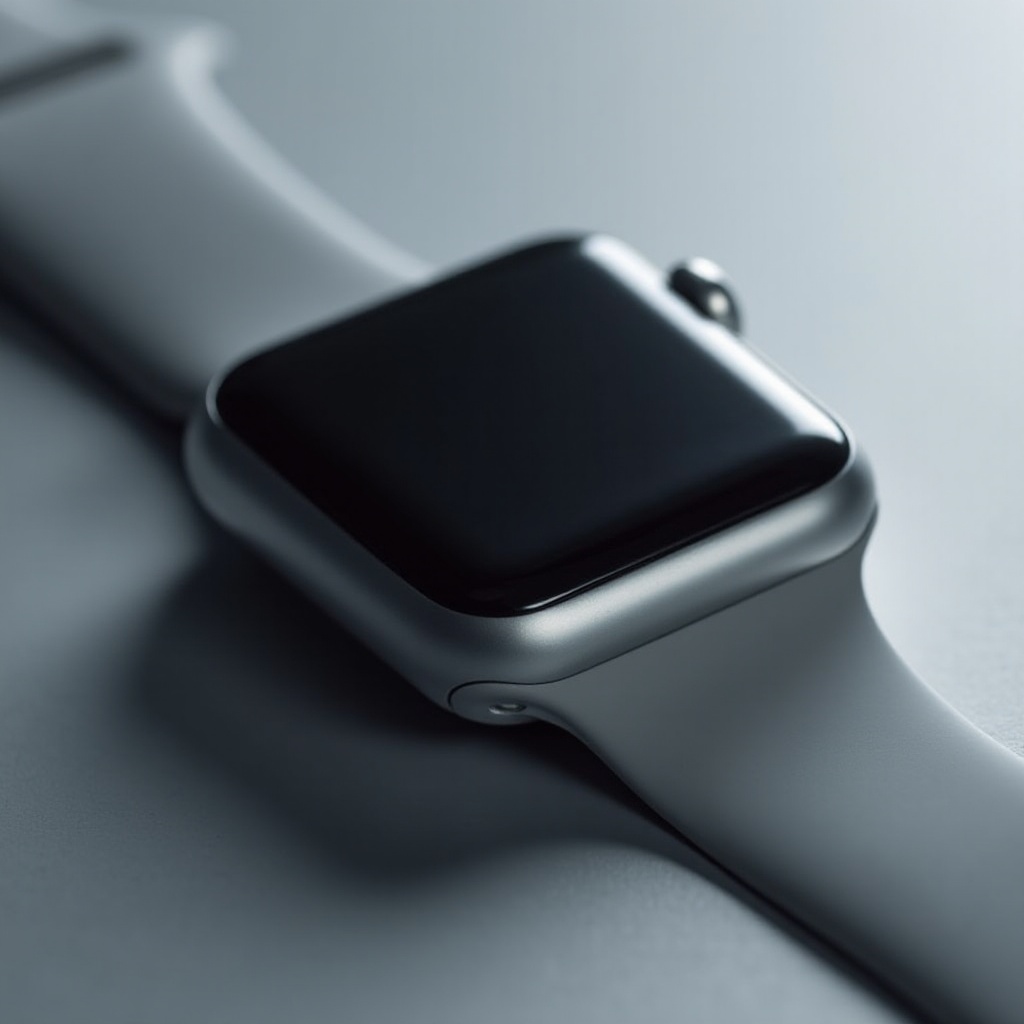
The Digital Crown is pivotal for navigating the Apple Watch’s interface, drawing inspiration from traditional watches. It provides users with a seamless experience, facilitating tasks such as scrolling and zooming while keeping the screen unobstructed. With each Apple Watch iteration, the Digital Crown has seen utility expansions, further solidifying its role in blending technology with simplicity. Knowing its features helps in maximizing the use of your device.
Locating the Digital Crown on Your Apple Watch
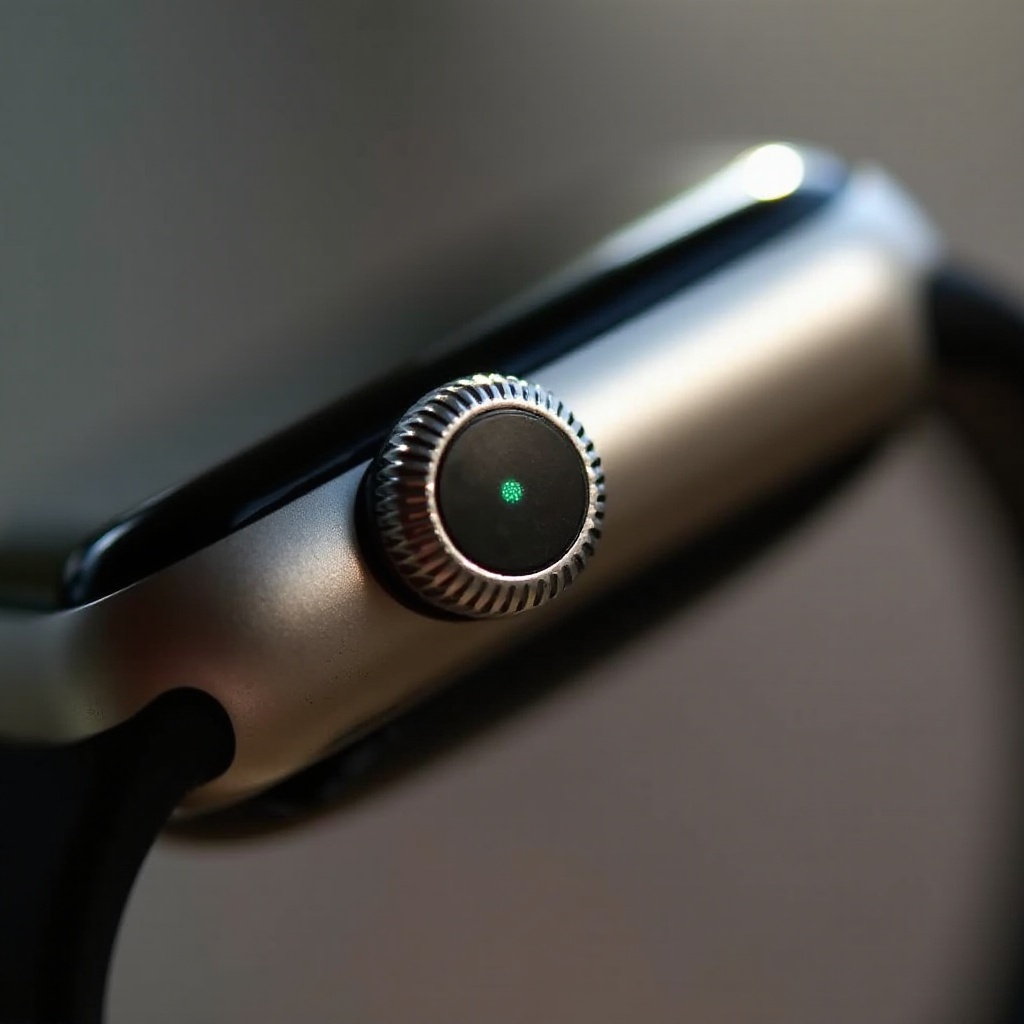
To find the Digital Crown, simply look on the right side of your Apple Watch when worn on the left wrist. Its consistent placement across Apple Watch models ensures user-friendly access whether you are checking notifications or utilizing apps. This strategic positioning underscores its importance in maintaining the ergonomic design Apple Watches are known for, keeping interactions straightforward and efficient.
Using the Digital Crown on Different Apple Watch Models
The capabilities of the Digital Crown vary slightly between models, adapting to the evolving technology Apple introduces.
– Apple Watch Series 6 and Later: These models feature a Digital Crown equipped with haptic feedback, enhancing the tactile experience with subtle vibrations. They support ECG capabilities, adding significant health monitoring potential.
– Apple Watch Series 3 to 5: The Crown in these models is robust, maintaining primary functions such as scrolling and selecting without the advanced haptic feedback introduced in Series 4.
– First Generation and Series 1 & 2: Designed for simplicity, these models offer basic navigational control through the Crown, focusing on core functionalities like scrolling and menu navigation.
Functions and Features of the Digital Crown
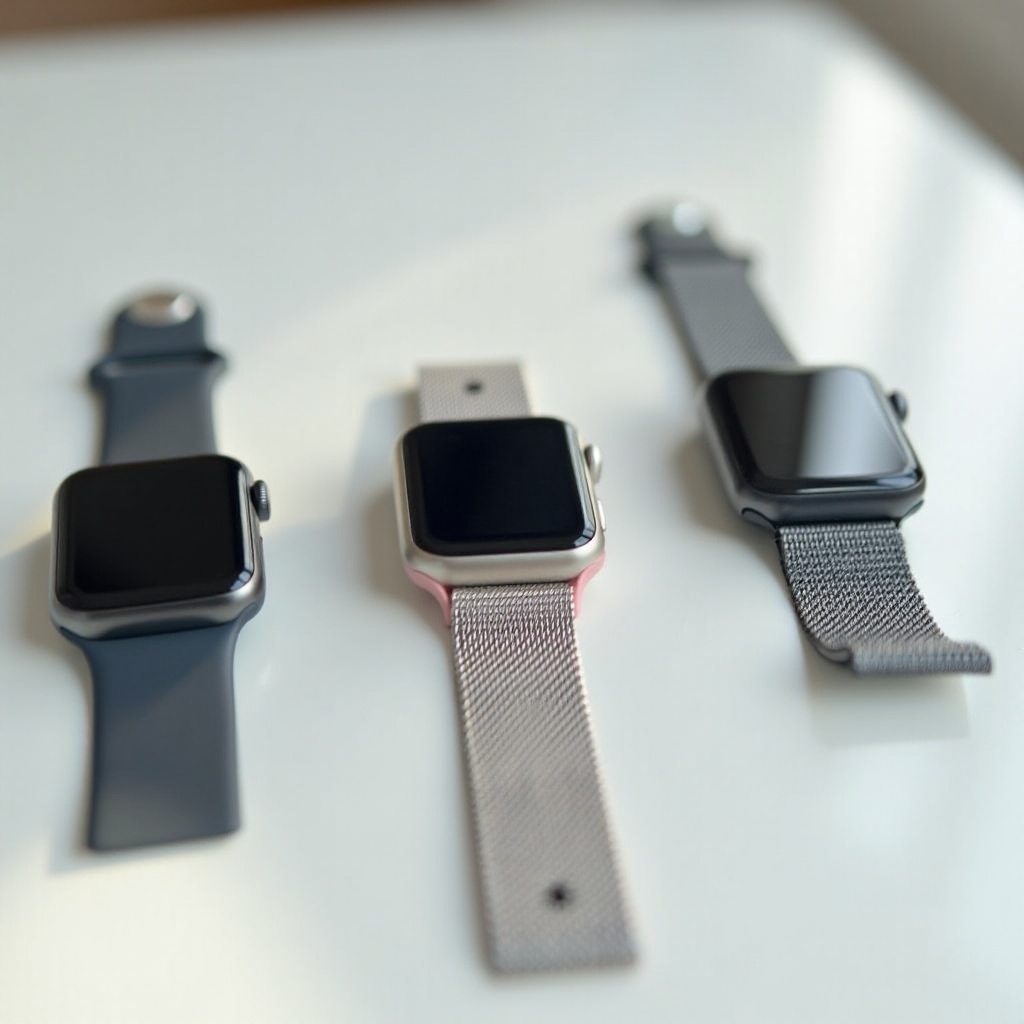
The Digital Crown on the Apple Watch provides a suite of functions that turn simple wristwear into a versatile tool.
– Navigating the Interface: The Crown makes it effortless to explore your device, from scrolling through apps to zooming in on maps. This intuitive interaction preserves the screen’s visual appeal.
– Accessing Siri and Applications: Press the Digital Crown to activate Siri or return to the Home screen, enabling quick access to Apple Watch’s many features.
– Advanced Features: With the progression of Apple Watch models, the Crown’s functionality includes health-monitoring capabilities like ECG readings, demonstrating its evolution from a basic control tool to a vital health aid.
Troubleshooting and Maintenance for the Digital Crown
Regular upkeep and recognizing issues early can extend the life and functionality of your Apple Watch’s Digital Crown.
– Common Issues: A sticky or unresponsive Crown could indicate debris accumulation or software issues.
– Simple Fixes: Gently rinse the area around the Crown while rotating it to remove dirt. A software reset can solve responsiveness problems.
– Preventive Maintenance: Keeping your Apple Watch clean and dry, combined with regular maintenance, ensures the Digital Crown remains in optimal working condition.
Conclusion
The Digital Crown is not just a design element; it is a crucial component that enhances the Apple Watch experience. From basic navigation to advanced health tracking, its role is multifaceted. By understanding where to find and how to make the most of the Digital Crown, users can unlock the full potential of their Apple Watch, ensuring it remains a valuable tool in both everyday and specialized tasks.
Frequently Asked Questions
How can I clean the Digital Crown on my Apple Watch?
Keep your Apple Watch dry and gently rinse the Digital Crown with water while rotating it to clear away dirt or debris.
Why isn’t my Digital Crown responding?
A non-responsive Crown could be due to dirt build-up or a software issue. Try cleaning it and performing a software reset.
Can the Digital Crown be customized?
The Digital Crown itself cannot be customized, but settings for its interactions can be adjusted in the Apple Watch app to better suit user preferences.