
Introduction
Sound quality plays a vital role in your television viewing experience. Whether you’re watching intense action films, thrilling sports events, or live music concerts, well-tuned audio settings can significantly enhance your overall engagement. Hisense TVs are equipped with versatile sound settings that allow you to tailor the audio based on the content. This comprehensive guide will help you explore these settings and optimize them for the best possible audio output.
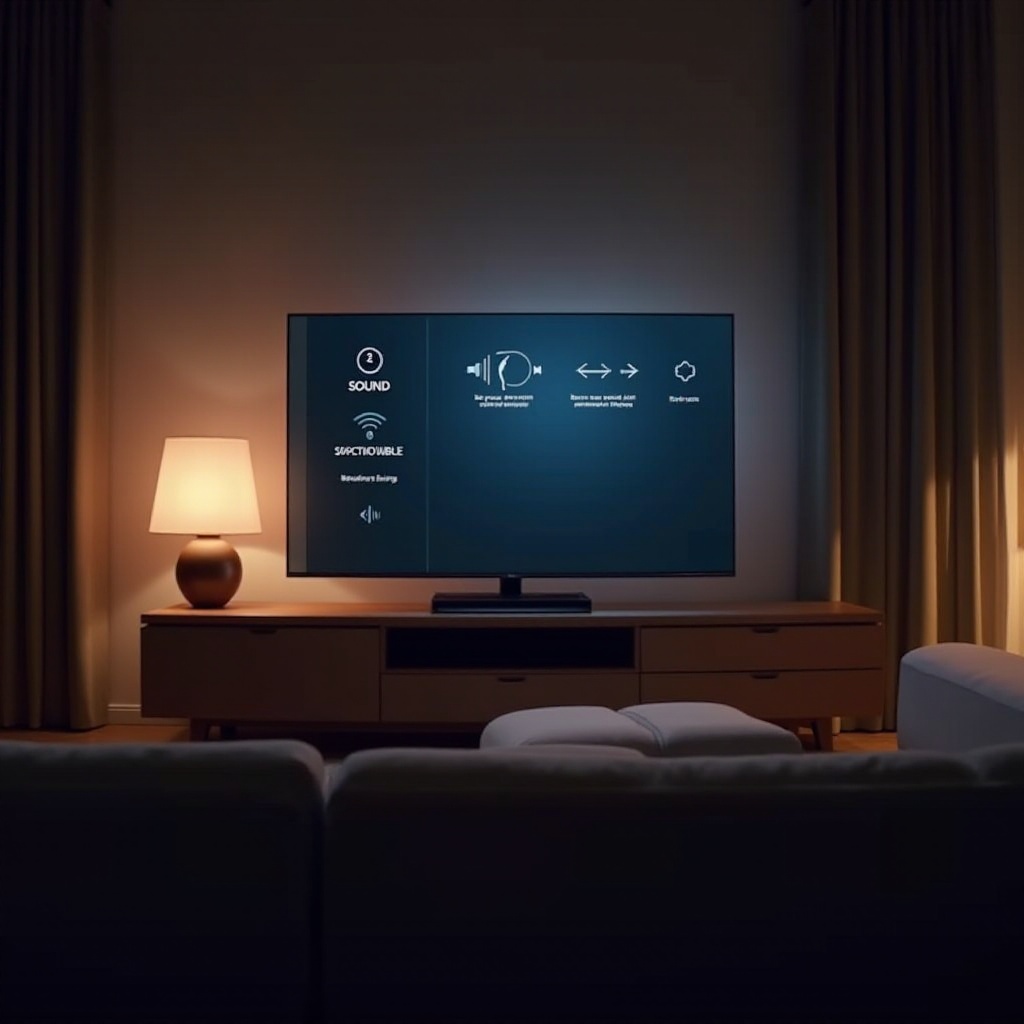
Exploring Hisense TV Audio Settings
Understanding your TV’s sound settings is the first step to improving your audio experience. The audio menu on your Hisense TV is designed to be user-friendly, offering various sound modes to choose from.
-
Navigating the Sound Menu: Access the sound settings by pressing the ‘Menu’ button on your remote. Navigate through ‘Settings’ to reach the ‘Sound’ tab, where different modes and options await your exploration.
-
Understanding Sound Modes Like Standard, Theater, and Music: Each preset—Standard, Theater, and Music—is tailored for specific content types. Standard mode serves as a balanced option for general viewing. Theater mode amplifies dialogues and bass, ideal for movies, while Music mode enhances frequencies suitable for music playback.
With these basics in mind, let’s customize these modes for specific content to elevate your viewing experience.
Customizing Sound for Different Types of Content
Different types of content require unique sound configurations. A one-size-fits-all approach doesn’t work if you want the best listening experience.
-
Best Sound Settings for Movies: Utilize Theater mode for films to boost bass and clarify dialogues, enriching your cinematic experience. Adjust the volume to enhance sound effects further.
-
Ideal Audio Configuration for Sports: When watching sports, prioritize commentary clarity and dynamic range. Switching to Sports mode or manually adjusting the sound using bass and treble controls can enhance crowd ambiance and announcer clarity.
-
Optimal Settings for Music and Live Concerts: Select Music mode when enjoying a music concert or live performance. This setting boosts mid and high frequencies to mimic concert audio quality effectively. Consider reducing the bass if it overwhelms other sound elements.
With your content-specific sound preferences set, let’s explore advanced features for more precise customization.

Advanced Audio Features in Hisense TVs
Hisense TVs come loaded with advanced features like Dolby Audio and equalizers, offering further customization for your listening pleasure.
-
Leveraging Dolby Audio: Dolby Audio enhances sound clarity, automatically adjusts volume, and adds depth. Ensure it’s activated for high-definition content, enriching every detail.
-
Using the Equalizer for Tailored Sound: The equalizer lets you fine-tune specific sound frequencies. By carefully adjusting the bass, treble, and mids, you can personalize your audio to match your preferences, creating a more immersive experience.
Once you’ve adjusted these features, refining speech clarity becomes the next step for a well-rounded sound experience.
Improving Speech and Dialogue Clarity
For story-driven content, clarity in dialogue is essential to understanding the plot. Hisense TVs offer tools to help achieve this clarity.
-
Using ‘Clear Voice’ and Similar Features: Turn on features like ‘Clear Voice’ to emphasize speech without sacrificing background sounds. This feature is found in the audio settings and can significantly enhance dialogue clarity.
-
Manual Adjustments for Enhanced Dialogue Clarity: Adjusting the equalizer by boosting mid-range frequencies helps clarify spoken words. Reducing background noise and ensuring ambient sounds do not overpower dialogues can maintain sound balance.
After optimizing dialogue settings, potential audio issues may still arise, so let’s troubleshoot these next.
Troubleshooting and Solving Common Audio Issues
As with any technology, sometimes issues can arise with sound. Understanding how to diagnose and fix these issues is crucial.
-
Fixing Sound Distortion and Delay: If distortion occurs, ensure all cables are connected securely. To address audio delays, use the ‘Audio Delay’ setting found in the sound options to sync the audio with the picture.
-
Common Volume Problems and Their Remedies: Problems like volume not adjusting smoothly can often be resolved by checking remote batteries or resetting sound settings. If problems continue, consider performing a factory reset.
These solutions should help resolve common issues, letting you enjoy optimal sound from your Hisense TV consistently.
Conclusion
Getting the most out of your Hisense TV involves not just understanding the visual settings but also optimizing the sound settings for a complete experience. By effectively using the sound modes, advanced features, and troubleshooting tips provided, you can ensure a superior audio-visual experience tailored to your preferences. The right audio settings transform your viewing into an immersive sensory experience, so take the time to explore and adjust these options until they meet your standards.
Frequently Asked Questions
How do I reset the sound settings on my Hisense TV?
Navigate to ‘Settings’, select ‘Sound’, and choose ‘Reset Sound Settings’ to restore defaults.
What should I do if my Hisense TV has no sound?
Check cable connections, ensure the TV isn’t muted, verify volume settings, and consider a soft reset or update.
Is it necessary to use a soundbar with my Hisense TV for better audio?
A soundbar enhances audio for home theater setups, but Hisense TVs provide excellent audio with built-in settings.