
Introduction
Dell printers often play an essential role in both home and office settings. When they sideline operations with technical issues, it can be frustrating and disruptive. Fortunately, most of these problems can be resolved with a little troubleshooting know-how. This guide provides comprehensive solutions to common printer dilemmas, covering everything from connectivity glitches to print quality concerns and error codes. Whether you’re dealing with a stubborn paper jam or a mysterious error message, we’ve got the tips and strategies to get your Dell printer back on track.
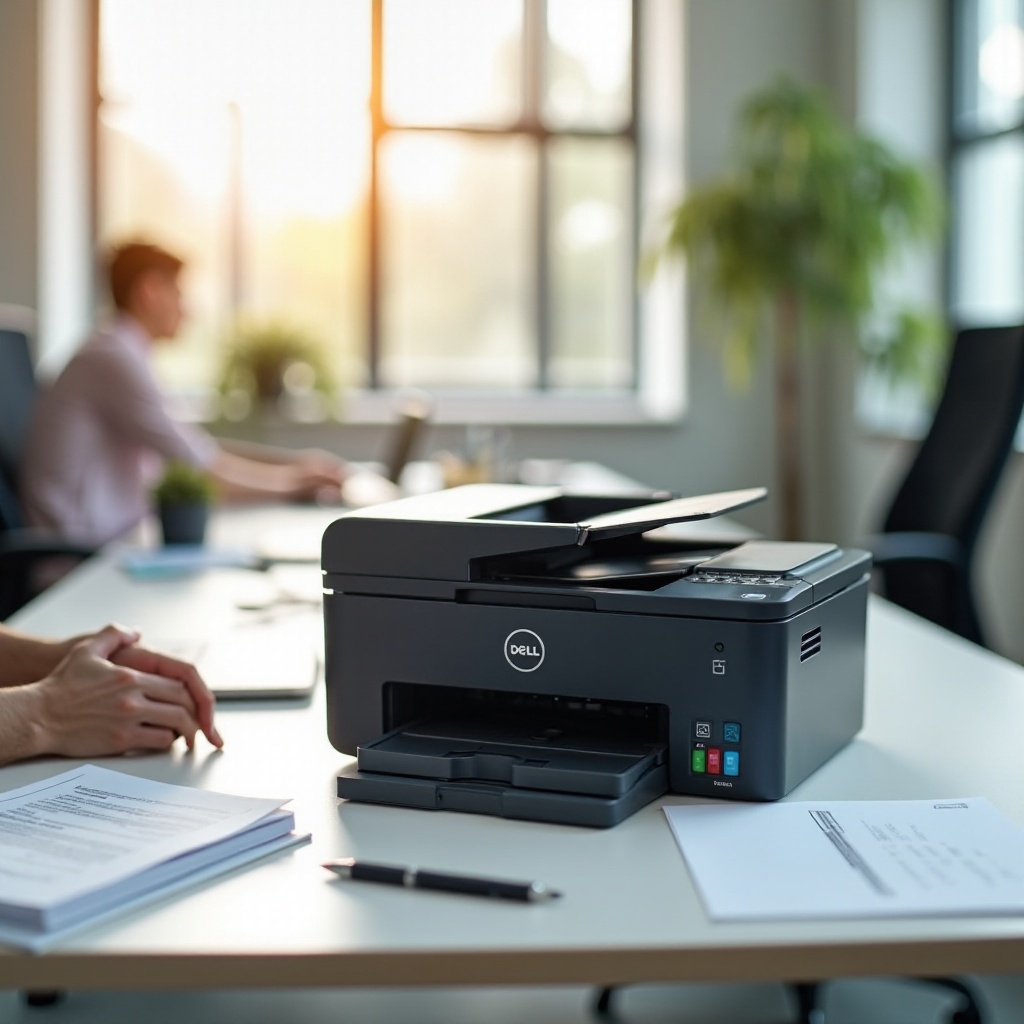
Common Dell Printer Problems and Easy Fixes
Dell printers can encounter several recurring problems that are relatively easy to fix if you know where to start:
-
Paper Jam Solutions: Turn off and unplug your printer before carefully opening it to remove any visible jammed paper. Make sure you clear all small paper pieces so they don’t cause future jams.
-
Resolving Printer Not Recognized Issues: If your computer doesn’t recognize your printer, ensure all cables are connected securely and try reinstalling or updating your printer’s driver software.
-
Fixing Printing Quality Problems: Poor print quality can often be resolved by cleaning the print heads and aligning the ink cartridges. Check your printer settings to ensure the correct paper type and print mode are selected.
These quick fixes commonly address printer issues, paving the way to more complex troubleshooting.
Troubleshooting Connection Issues
Solving connection issues involves both hardware checks and software adjustments to ensure seamless communication between devices:
-
Wireless Connectivity Troubleshooting: Check that your printer is within your Wi-Fi range. Avoid barriers like walls and large metallic objects that can weaken or interrupt the signal. Use your printer’s setup menu to re-establish a connection to your Wi-Fi network.
-
Fixing Printer Offline Status: If the printer is offline, go to the printer settings and select ‘Use Printer Online.’ Clear any paused print jobs from the queue to alleviate any communication stalls.
-
USB Connection Fixes: Double-check that your USB cables are intact and properly inserted into the correct ports. Use a different port or switch the cable if disconnection persists.
Resolving these connectivity issues ensures your printer remains responsive and functional, fostering a better experience.
Dealing with Ink Cartridge and Print Quality Issues
A crucial step in printer maintenance is ensuring your printing ink is utilized efficiently and effectively:
-
Resolving Ink Cartridge Errors: Verify that ink cartridges are installed correctly. If error messages appear, reseat the cartridge or consider replacing it with a genuine Dell product to prevent damage to the printer.
-
Steps for Cleaning Print Heads: Clogged print heads can interfere with output quality. Use the ‘Clean Print Heads’ option available in the printer’s maintenance menu to automatically clear any blocks.
-
Adjusting Printer Settings for Better Quality: To improve print quality, adjust your printer settings via the control panel. Ensure you are using the right settings for your paper and print task to avoid faded or streaked prints.
These stages promise marked improvements in the quality of your documents.
Understanding and Resolving Dell Printer Error Codes
Handling error codes can be intimidating, but understanding them simplifies resolving underlying issues:
-
Common Error Codes Explained: Familiarize yourself with typical errors like ‘E50’ and ‘E54.’ These indicate component-specific issues like the fuser unit or printer head.
-
Step-by-Step Solutions: Utilize suggested actions from your printer’s manual or online support. This might include restarting the printer or conducting component checks.
These insights break down the confusion around error codes, equipping you with swift remedies.
Maintaining Your Dell Printer for Optimal Performance
Maintenance is vital in extending the lifespan of your printer and preventing future problems:
-
Regular Maintenance Tips: Clean your printer’s exterior regularly to avoid dust accumulation. Also, periodically check for firmware updates on the manufacturer’s website for optimal functionality.
-
Firmware Updates: Installing firmware updates can resolve bugs and introduce new features that enhance printer performance. Visit Dell’s official site for any available upgrades.
Consistent maintenance mitigates breakdowns and ensures a smooth printing experience.
Advanced Troubleshooting and When to Seek Professional Help
Even with excellent care, more substantial issues may require advanced intervention:
-
Using Dell Support Tools: Leverage Dell’s online diagnostic tools, which provide targeted solutions based on your printer model and issue.
-
Identifying When Professional Repairs Are Needed: If all else fails, and issues recur or remain unresolved, it’s wise to contact Dell’s customer support or consult a professional technician to prevent worsening conditions.
Recognizing when to call in experts can save time and avoid potential printer damage.
Frequently Asked Questions
How do I update the drivers for my Dell printer in 2024?
Visit the Dell support website, locate your printer model, and download the latest driver updates suited for your operating system.
What should I do if my Dell printer keeps going offline?
Check connection settings, ensure the printer is set to online mode, and clear any stalled print jobs. Restart your printer and network devices if necessary.
How often should I perform maintenance on my Dell printer for the best performance?
Perform cleaning monthly and firmware updates quarterly to ensure optimal operation and prevent hardware malfunctions.