
Introduction
Is your Android home screen cluttered with a myriad of apps? Organizing your apps into folders can dramatically enhance your user experience, making your device more user-friendly and aesthetically pleasing. Whether you’re a new Android user or someone more experienced, mastering the art of making folders for your apps is a useful skill. This guide will walk you through the process, offering practical steps to organize apps effectively while troubleshooting common issues.

Understanding the Value of Folders on Your Android Device
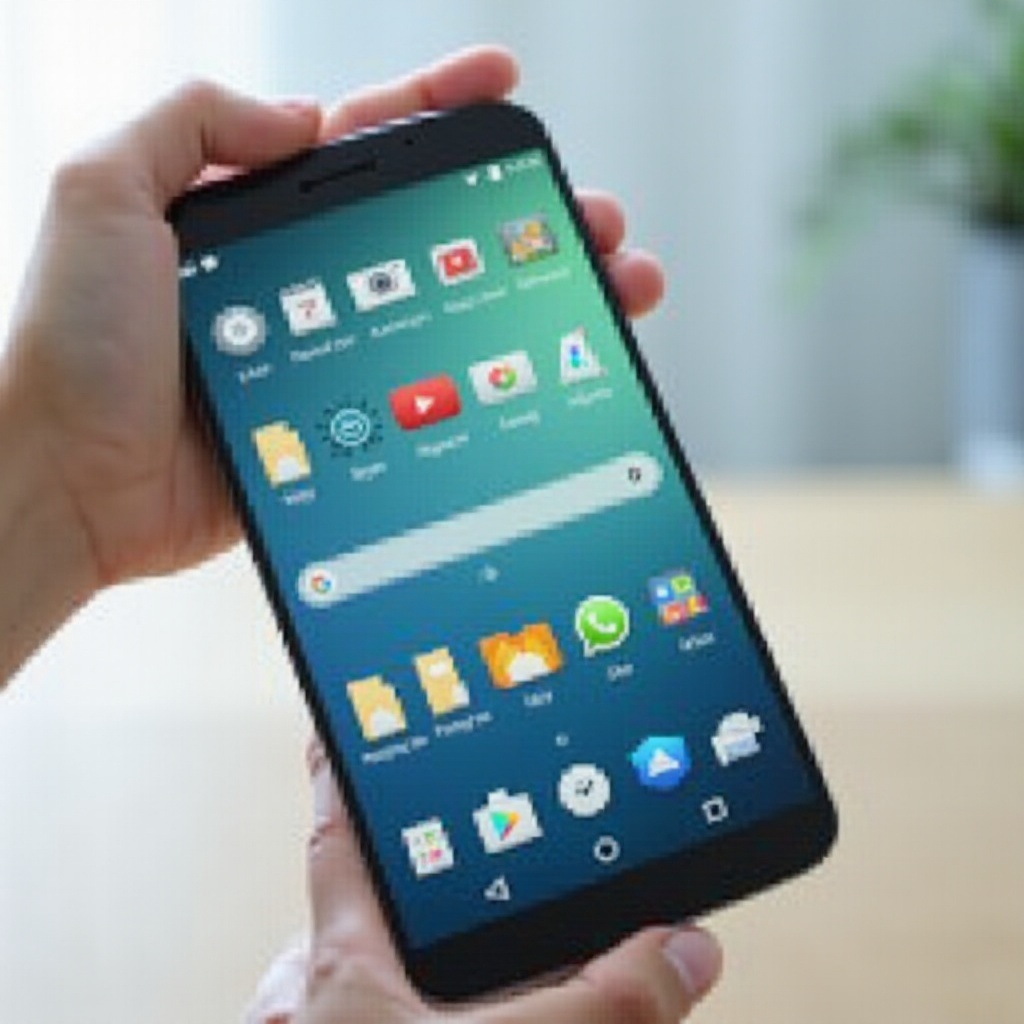
Beyond the immediate appeal of a tidier home screen, organizing your apps into folders embodies efficiency. Grouping similar apps allows you to significantly cut down on the time spent searching for a specific application. Imagine with just one tap, access your entire collection of social media apps or productivity tools. This approach not only saves time but also enhances your workflow.
Moreover, folders reduce visual clutter, crafting a more aesthetically pleasing home screen. Neatly organized apps mean you can focus better, swipe less out of habit, and enjoy a distraction-free experience. Ultimately, the performance benefits are clear; a less cluttered screen leads to faster navigation and interaction.
Preparing for Effective App Organization
Before embarking on your organization journey, preparation is crucial. Begin by auditing your apps. Identify those you frequently use and those that merely occupy space. Streamlining your apps by removing the redundant ones can significantly facilitate the process.
Subsequently, jot down categories that align with your lifestyle and usage. Popular categories often include ‘Work,’ ‘Entertainment,’ ‘Social Media,’ and ‘Health.’ Selecting categories that resonate with your personal usage ensures your system is sustainable and intuitive.
Step-by-Step Guide: Crafting Folders on Android
Creating folders isn’t just simple; it’s transformative for your digital life. Here’s a quick guide:
Crafting Folders on the Home Screen
- Tap and hold on one app until it becomes movable.
- Drag it onto another app you wish to group it with. You will automatically create a folder.
- Release the app to solidify its place in the new folder.
Incorporating Apps into Existing Folders
- Tap and hold the desired app.
- Drag it to the existing folder where it belongs.
- Release the app within the folder.
Renaming and Personalizing Folders
- Open the folder by tapping it.
- Tap the ‘Unnamed Folder’ label or the current name.
- Enter your desired name.
- On some devices, you can further customize folders by changing colors or icons, facilitating easy recognition.
Advanced Tips for Folder Organization
Want to elevate your organizational game? Here are more advanced strategies:
Categorizing Apps by Functionality
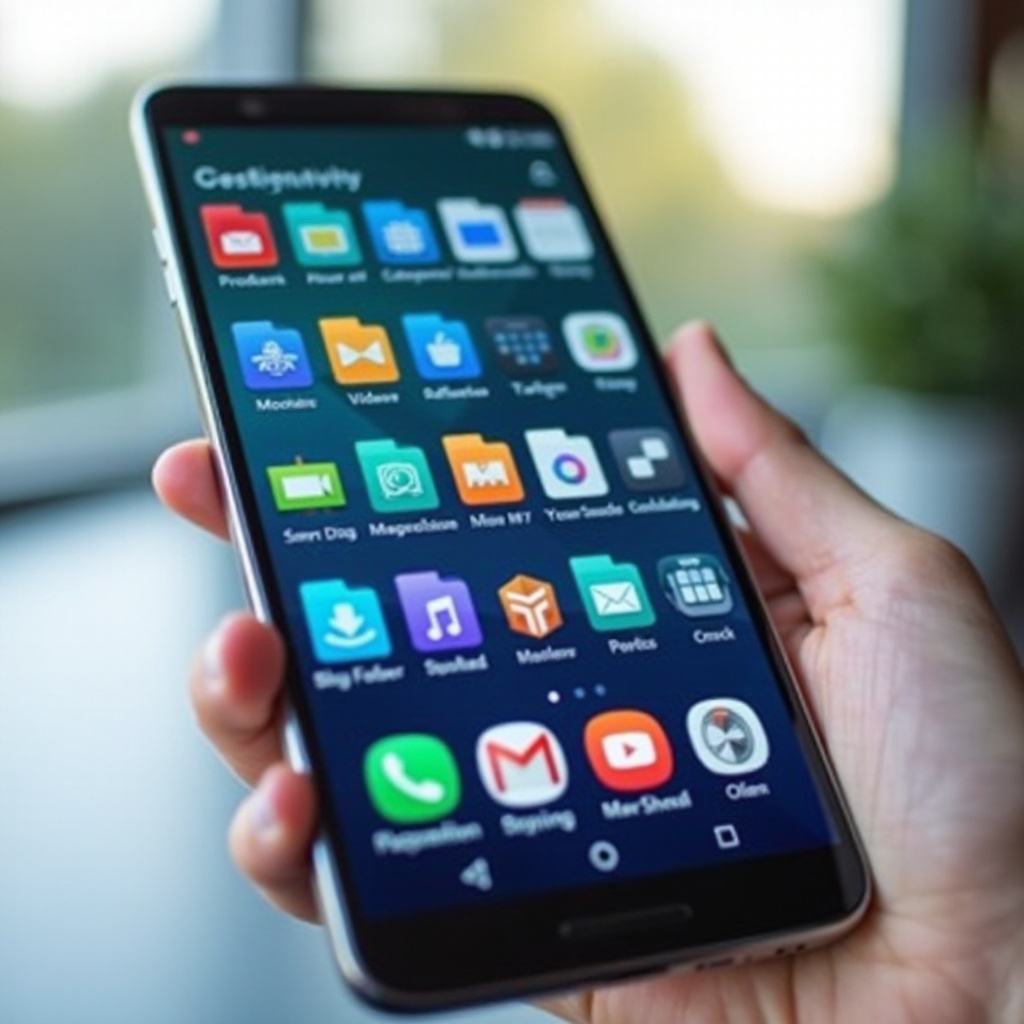
Consider grouping apps based on their purpose. Combine all your photo-editing tools or music apps into one folder. Arrange according to your daily needs, catering to both professional and personal spheres.
Customizing Folder Design and Layout
Utilize customization features offered by your Android device. Change folder colors or icons to add a unique flair. This visual differentiation can depth your experience and streamline accessibility.
Leveraging Third-Party Apps for Greater Features
Dive into the Play Store for app organizers that offer advanced features. Enhanced abilities like nested folders, custom icon packs, and meticulous categorization can elevate your home screen organization. Select one that complements your style.
Troubleshooting Common Folder Creating Issues
While crafting folders is generally smooth, hiccups may occur. If a folder is unresponsive:
- Restart your device to solve fleeting glitches.
- Check for software updates, as they often contain fixes.
- Clear system app caches if problems persist with folder functionality.
Sustainable Home Screen Organization Practices
Maintaining an organized home screen requires periodic effort:
- Conduct regular app audits, removing unused utilities.
- Re-evaluate categories, ensuring they remain relevant.
- Occasionally rearrange folders and apps to fit evolving priorities.
Conclusion
Creating and managing folders on your Android device is a straightforward yet impactful endeavor. Employing an efficient organizational strategy enriches your device aesthetic and enhances productivity. By effortlessly finding apps, sidestep the hassle and embrace a clearer digital environment. Follow these steps, and watch your busy phone transform into a serene, efficient tool.
Frequently Asked Questions
Can I create folders in the app drawer on Android?
Yes, most Android devices support creating folders in the app drawer with similar steps as on the home screen.
How do I remove an app from a folder?
Simply open the folder, tap, hold the app you want to remove, then drag it out of the folder.
Is it possible to password-protect app folders on Android?
Android doesn’t natively support this, but you can use third-party apps to enable password protection for app folders.